
Route des Gorges, 3 pm. You stop at the viewpoint, take out your phone to check where to have dinner tonight — and the app is gone. It was in a browser tab, somewhere between the car rental booking and a search on the tides. I live in Mauritius, I built this app, and it is the first thing I do on a new phone: I put it on the home screen. One icon, one tap, and the app is there, with your plan for the week. Here is how it goes, screen by screen.
The real problem: an app that lives in a tab
Moris Insider is not on the App Store or Google Play. It is a web app: it opens in your phone’s browser, like a website. That is convenient — nothing to download, always the latest version — but a tab gets lost, gets closed by mistake, and the browser bars eat part of the screen.
Installing it fixes exactly that. The content stays the same, but the app gets its own icon on the home screen, opens full screen and no longer mixes with your other tabs.
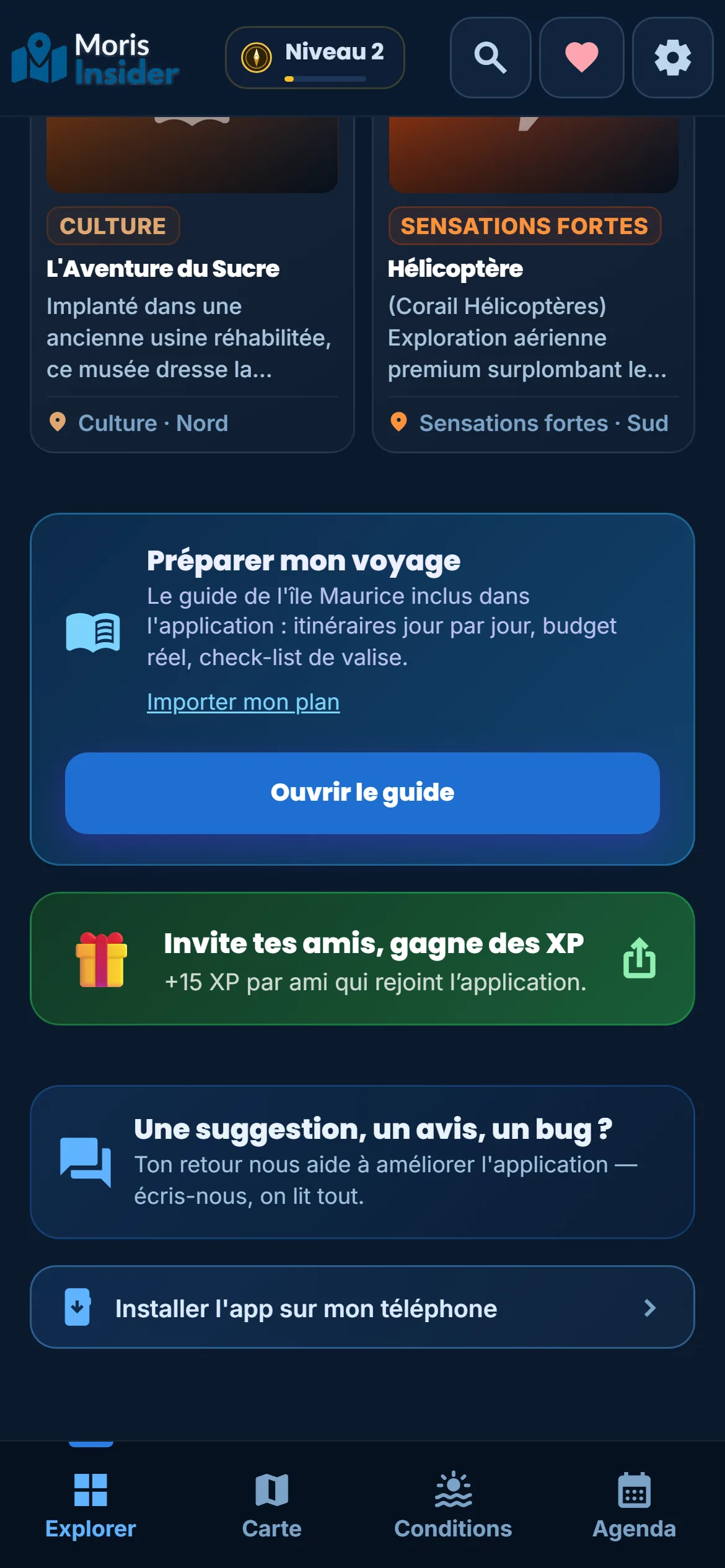
What I did, screen by screen
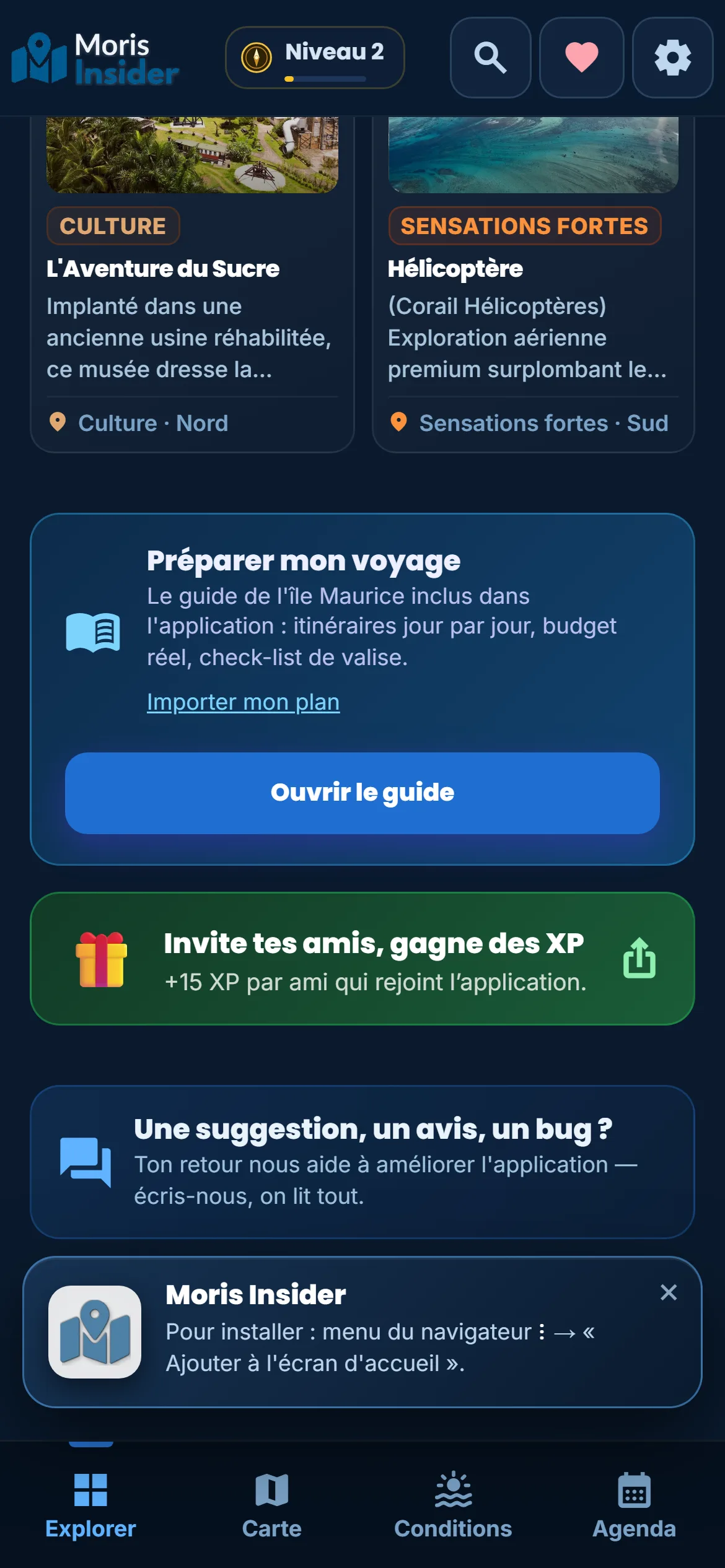
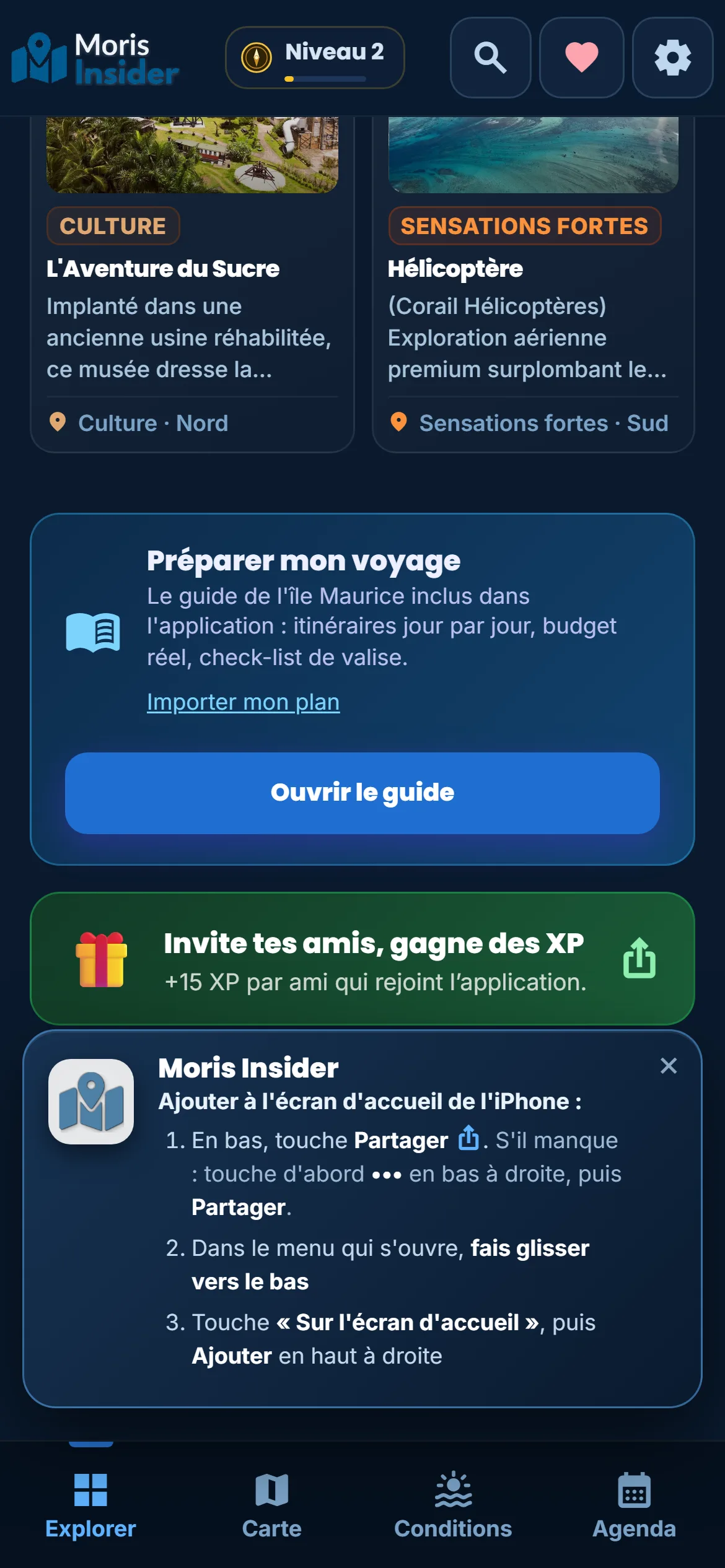
On this Tuesday evening, 27 October, I went through the whole process again for this article, first the Android version, then the iPhone version. The screenshots below come from the app itself.
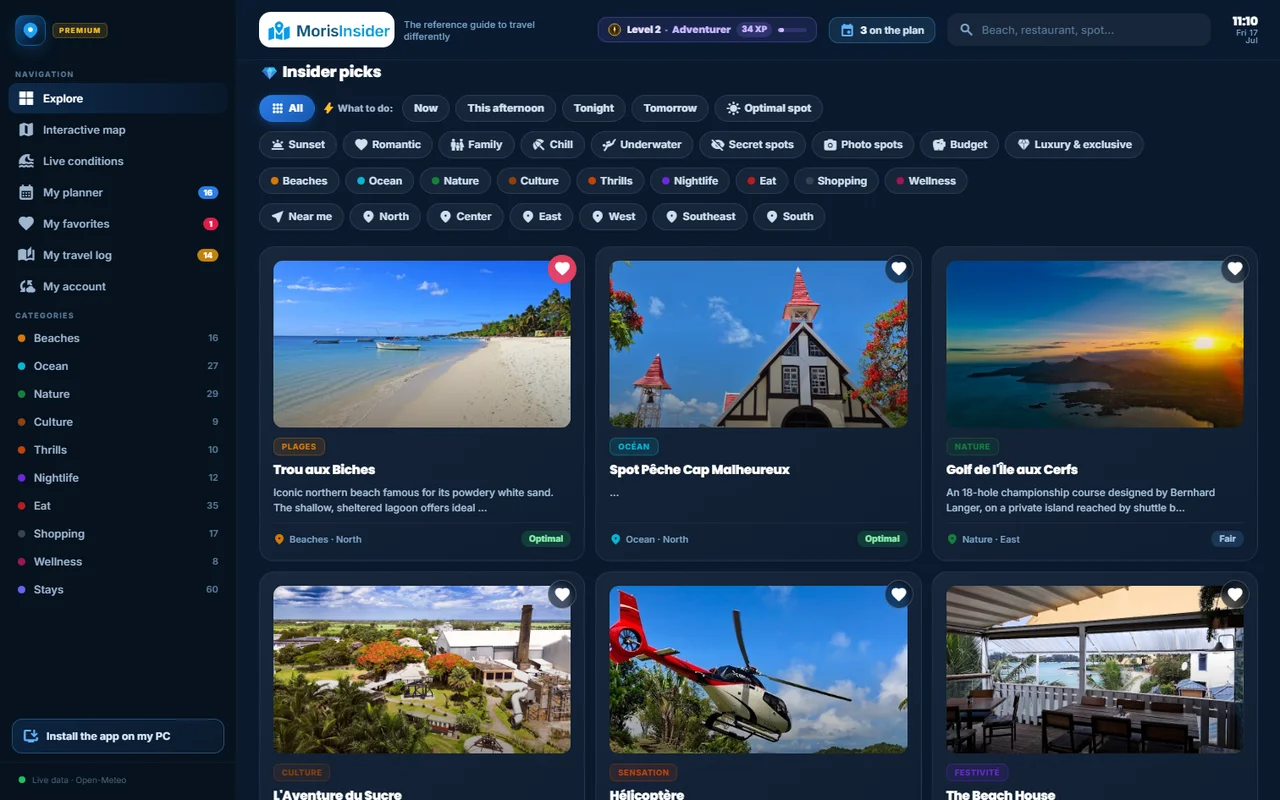
On Android. When the browser allows it (Chrome, Edge, Samsung Internet…), the app shows a banner on its own with an “Install” button: one tap, the phone asks you to confirm, and the icon is on your home screen. If you closed that banner, or your browser does not offer it, the button at the bottom of Explorer opens a one-line guide: the browser menu, then “Add to Home screen”.
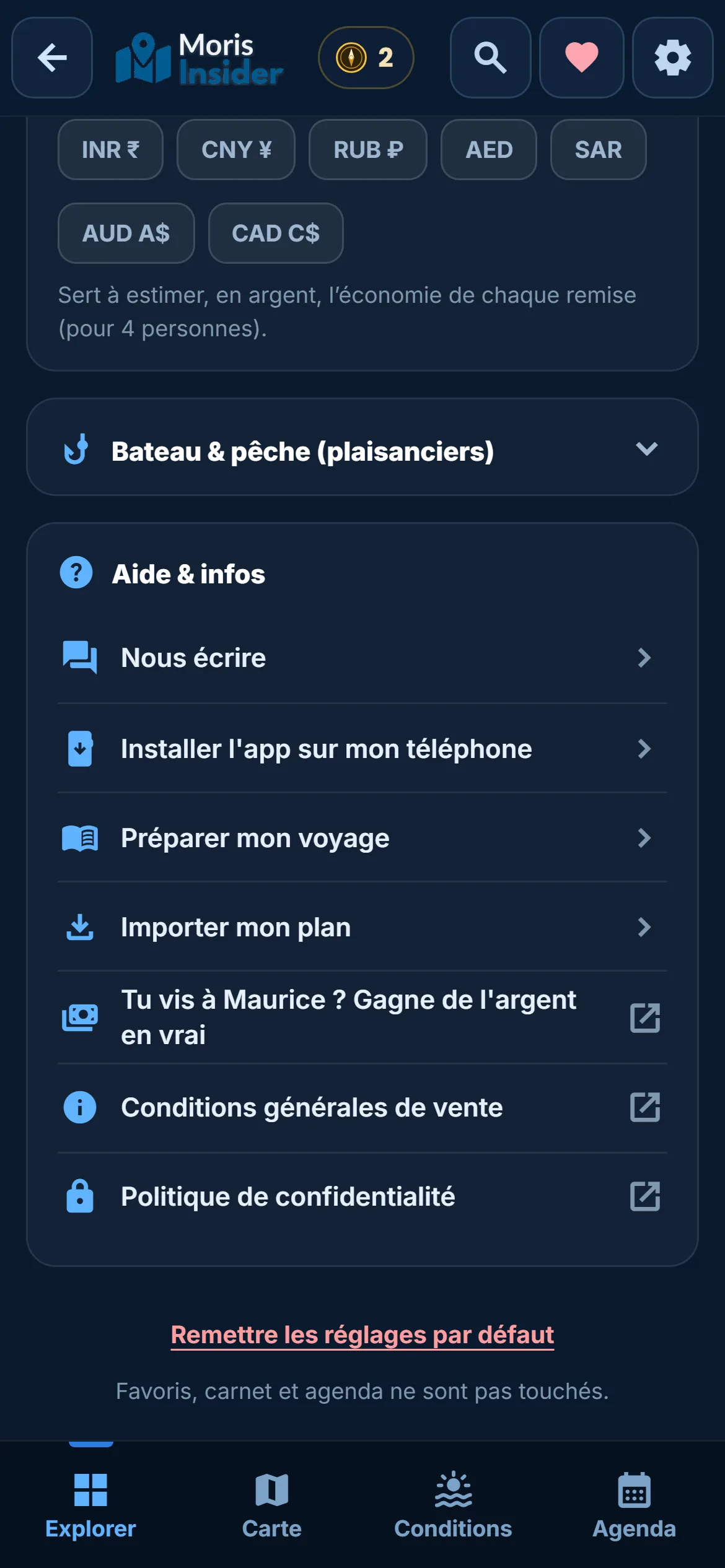
On iPhone. Apple only lets you install this kind of app from Safari. The app knows it: opened in Safari, it shows the three steps — the Share button at the bottom, swipe the menu down, then “Add to Home Screen” and “Add”. Opened in Chrome or Firefox on an iPhone, it first tells you to switch to Safari.
Either way, the icon is called “Moris”. You open it like any other app.
What it is, what it allows, what it changes
What it is. An install from the browser, with no store: the app registers with your phone as a full app, with its icon, its name and a full-screen portrait display.
What it allows. It opens in one tap, with no address bar, like any other app on your phone. It updates itself: no update to download, and if a new version comes out while it is open, a small “New version available” banner offers to refresh it. When you come back after more than three quarters of an hour, it fetches fresh weather instead of showing you this morning’s. And on iPhone, it is what makes the planner’s reminders work: Apple only allows them for apps placed on the Home Screen.
What it changes. On the road, you stop searching. The icon sits next to your maps and your messaging app, and your day, your favourites and your travel journal are one tap away. The app also asks the phone to keep its data rather than wipe it when space runs short. And if the signal drops on a bend, it still opens with what it had already loaded, with a small “Offline” notice.
What installing does not do
It is not in the stores. If you search for “Moris Insider” on the App Store or Google Play, you will not find it. Installing happens from the browser, and only there.
On iPhone, it is Safari or nothing. That is Apple’s rule, not the app’s choice. Another iPhone detail: the installed app and Safari do not share their data. Favourites added in Safari do not appear in the icon — unless you created an account, which syncs planner, journal and favourites between the two.
It still needs a connection for everything that changes live: the map, the current weather, directions. Offline, you get your plan and what you have already looked at, nothing more.
It does not replace buying the app. Installing gives you a shortcut, not access. It is the app you bought that goes on your home screen.
If you close the install banner, it comes back three days later; the button at the bottom of Explorer is there at any time. Thirty seconds, once, and the island fits in one icon.
€24.90 once, for life · 30-day money-back guarantee